
This site is registered on wpml.org as a development site. Switch to a production site key to remove this banner.
Let’s say you’re planning a big meetup at a theme park, and your attendees are from all over. Carpooling and caravaning isn’t an option, since some are from miles away. How can you make sure everyone gets to the same destination?
With QR codes and Google Maps, you can easily ensure that your attendees get the right directions, wherever they are and with whatever mode of transportation they prefer!.
In this piece I will go over how you can use QR codes along with Google Maps to share directions to a certain location from wherever the scanner may be. So get your road snacks and turn up the radio, because the trip starts now!
What is a QR code?
A QR code is a special type of image that can be scanned by a phone, tablet, or other device, in order to access the data encoded into it. They typically appear as squares made up of smaller black and white squares, though this can vary.
QR codes exist in the real world as simple images, so they can be found just about anywhere you can display a picture. This could be a poster, a flier, a business card, a sign, an advertisement, a post card, or even on a screen like in a TV show or a video game.
These codes are highly versatile and can be used to store all sorts of data. The most common example people think of is as an easy way to access a URL link, though they can also be used for certain file types, images, videos, social media links, and more!
What is Google Maps?
Google Maps is a program and application that allows users to view locations, learn more about them, and ultimately get directions on how to get there.
This is not exclusive to car drivers, however, as the app can also instruct you on how to get to a location by walking, biking, and even via public transportation routes.
How can QR codes be used for Google Maps?
QR codes can be used as an easy way to provide directions to a location that can be accessed wherever the scanner may be and via whatever mode of transportation they use.
Let’s say you’re planning a big, multi person get together, like a family reunion, and need multiple parties from all over to get to one location. By providing a QR code with the Google Map destination, you can allow your guest to use it to get directions from wherever they are and via whatever method they use.
How to create a QR code for Google Maps
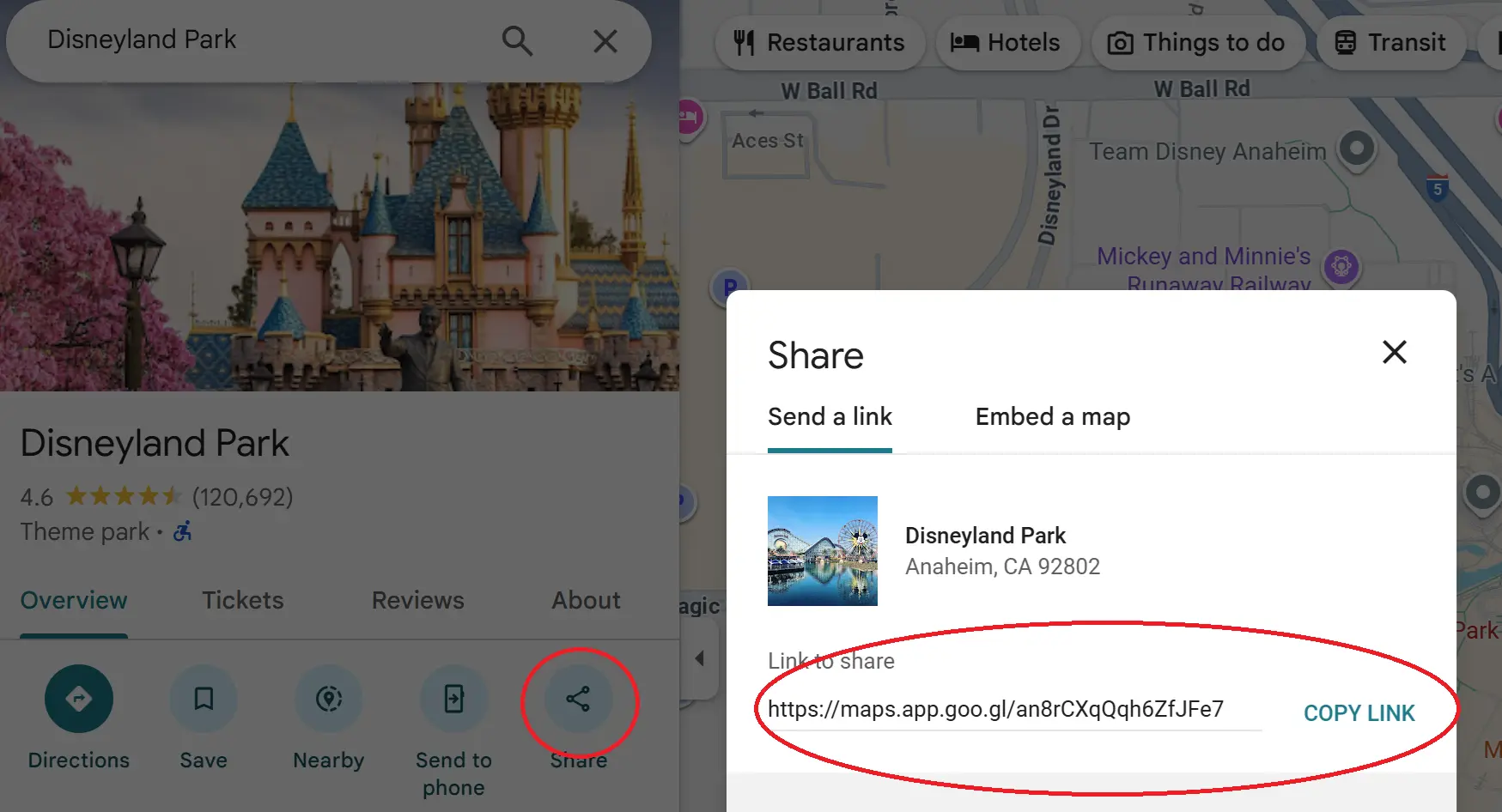
Step 1: In Google Maps, search your destination. Then click share, and copy the URL.
Step 2: In QR Code Developer, click on Create Code.
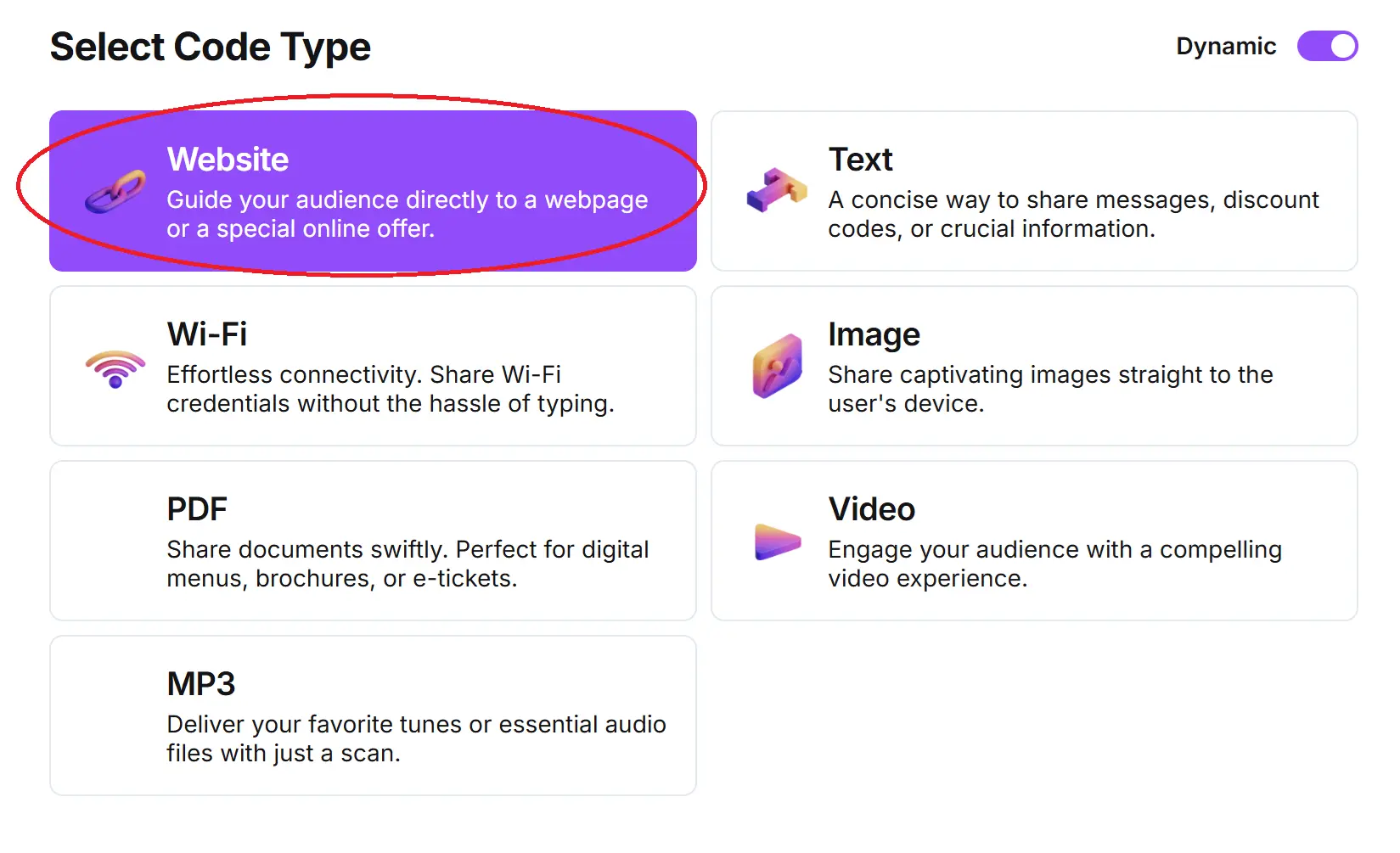
Step 3: Select the Website option.
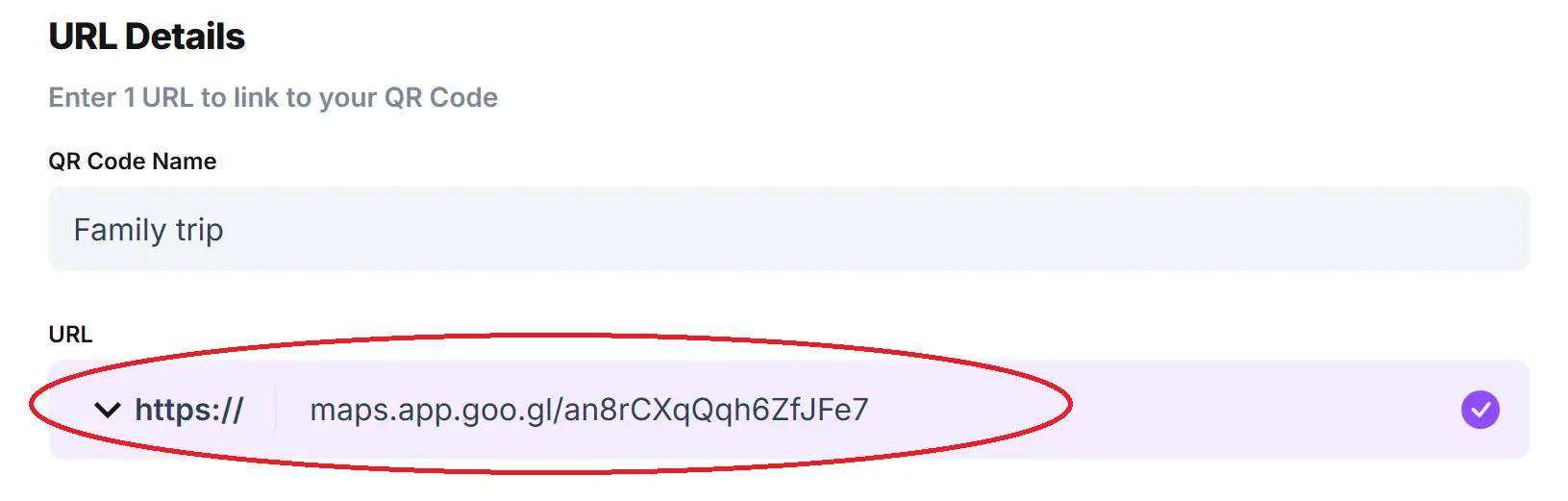
Step 4: Name your code and paste the link into the bar.
Optional: To further customize the look of your code, click on the pencil icon in the Preview menu.
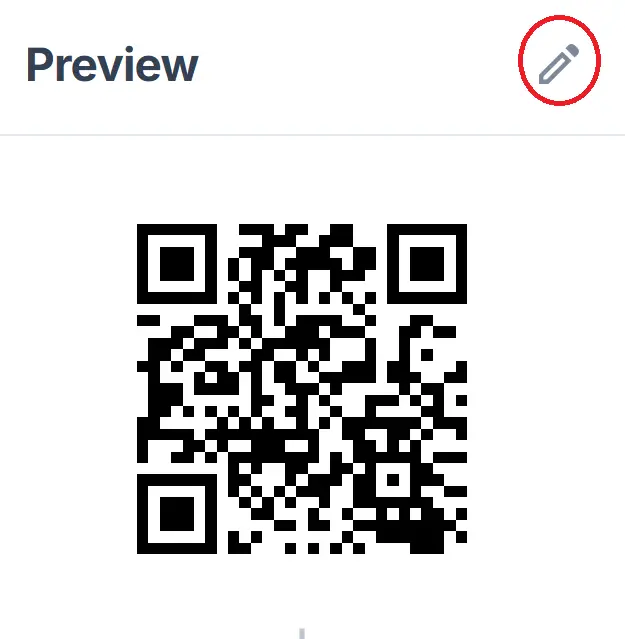
Step 5: Click Generate.

Step 6: Test your code on multiple devices.
FAQ
Q: Can I make a Google Map destination into a QR code?
A: Yes. Since Google Map destinations can be shared via URL link, they can be easily shared via a QR code.
Q: Will my code only give the directions from my home?
A: No. When someone else scans your code, they will be taken to the destination and be able to get directions from wherever they are.
Q: Will my code only give driving directions?
A: No. When another person scans your code, they can get directions to the destination via whatever mode of travel they like, whether that be driving, walking, biking, or through public transit.
Q: Can only Google Maps be made into QR codes?
A: No. Other map services, like Mapquest and Waze also allow you to share a destination via URL link, which can be easily made into QR codes.
Q: How easy are QR codes to share?
A: QR codes are extremely easy to share and can be attached to a text message, post card, pamphlet, flier, or wherever else you can display a 2D image.
Q: Do I need to hire someone to make my QR code?
A: No. QR codes can be made by yourself for free using a service like QR Code Developer.
Q: How easy is it to scan a QR code?
A: Scanning QR codes is extremely easy. All you need to do is open the camera app on your phone or other device, point it at the code, and tap the link when it pops up on screen.
Q: Do I need a special app to scan QR codes?
A: While external apps are available on mobile storefronts, most modern mobile phones are capable of scanning and accessing QR codes right from the built-in camera app.
General tips
- Know your audience: If you’re certain that most of your intended audience doesn’t know how to use QR codes or just don’t like them, then don’t use them.
- Keep instructions clear: Provide clear instructions on how to use and scan QR codes as well as where the codes will redirect to.
- Place codes on a flat surface: To make sure that codes are still scannable, only put them on flat surfaces, like walls, tables, posters, or fliers.
- Use high contrast: If using custom colors on a code, make sure that the colors are distinct enough from each other to be read as a QR code.
- Make sure codes are visible: Don’t place codes where patrons are unlikely to see them.
- Only use codes when necessary: If an alternative exists that’s easier for all parties involved, use that.
- Test on multiple devices: Make sure your codes work whether scanned on an Android device, iPhone, tablet, or other device.
Monitoring code usage
With the tools available on QR Code Developer, as well as other code generators, you can monitor the usage of any code you create. This can include how many times a code has been scanned, where it has been scanned, on what device, using what browser, and more. With these tools, you can figure out which codes are reaching the most people and where to focus any advertising efforts.
With QRCodeveloper you can monitor:
- Number of scans
- Number of scans by operating system
- Scans by browser
- Scans by country
- Scans by city
- Scans by language
- Unique scans
Conclusion
Using QR codes to distribute a map is a great way to ensure that all members of your party get to the same location! They’re quick and easy to make and can be attached to any flat surface, so you can put them on an invitation, post card, or a poster for the event.
If you want to get started creating your own QR code, then there’s no better place to start than QR Code Developer. Get started today and create your first QR code for free!