
This site is registered on wpml.org as a development site. Switch to a production site key to remove this banner.

Audience feedback is very important in any field that involves an audience. You want to make sure you’re doing everything right, and what better way is there to know then from the very folks you seek to serve?
In this regard, online customer and audience surveys are perhaps the best ways to receive feedback, as they are easy to make, easier to fill out, and can give you that vital feedback you need right away!
But how can you make sure your audience can access the surveys without having to go to a certain website or find a link? Well, you can make sure they can easily access it through the use of QR codes!
In this piece I will go over how you can use QR codes with online surveys, as well as provide tips, facts, and a step by step guide on how to make your own. So let’s get started!
What is a QR code?
A QR code is a special kind of image that contains encrypted data. This data can be accessed by scanning the code with a compatible device, like a mobile phone, tablet, or other specified hardware.
QR codes are highly versatile and can be used to share images, contact information, educational content, certain file types, as well as web based content like URL links, social media pages, group chats, and Youtube videos.
QR codes are also highly customizable in terms of visuals. While they are typically squares made of smaller black and white squares, they can be all sorts of different colors and orientations.
They can be as big as a corn maze or as small as a button, and can be found on fliers, stickers, cards, signs, and just about anywhere you can print a picture.
What is an online survey?
As the name would suggest, online surveys are questionnaires often given to customers of a product or service in order to gauge their feedback.
These are especially useful to businesses, as they allow them to get constructive criticism from their audience themselves and know if they need to change something about their product or pivot attention elsewhere.
Most surveys like this have moved into the online space, since they are easier to conduct online with a computer or mobile device then with a pen and paper, not to mention that you can view the feedback the instant you receive it.
How can you use QR codes with surveys?
QR codes can be very handy for distributing customer surveys. Since QR codes exist in the real world as simple 2D images, they can be easily printed on the receipt given to a customer after their purchase, allowing them to fill it out on their own time.
In addition, you can put the QR code for your survey on a business card, a sign within or outside your business, or wherever else you expect your audience to be.
How to make a QR code for a survey
The steps below use Google Forms as an example, though the same process should apply to all other online survey creators.
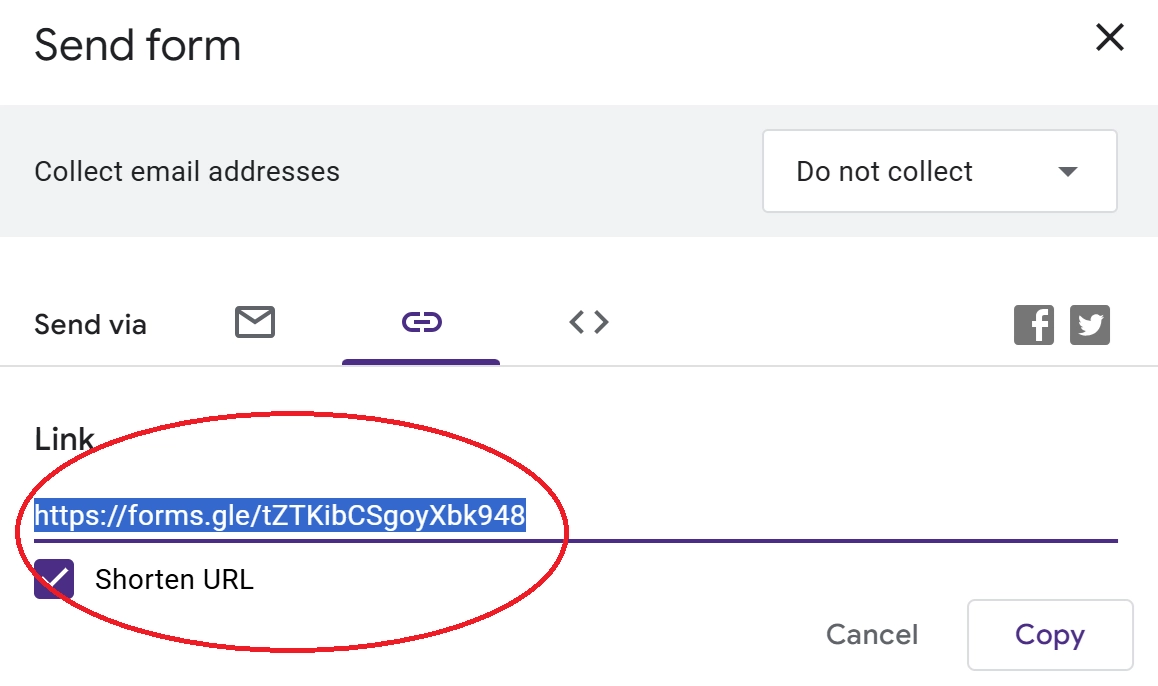
Step 1: Copy the URL link of your survey.
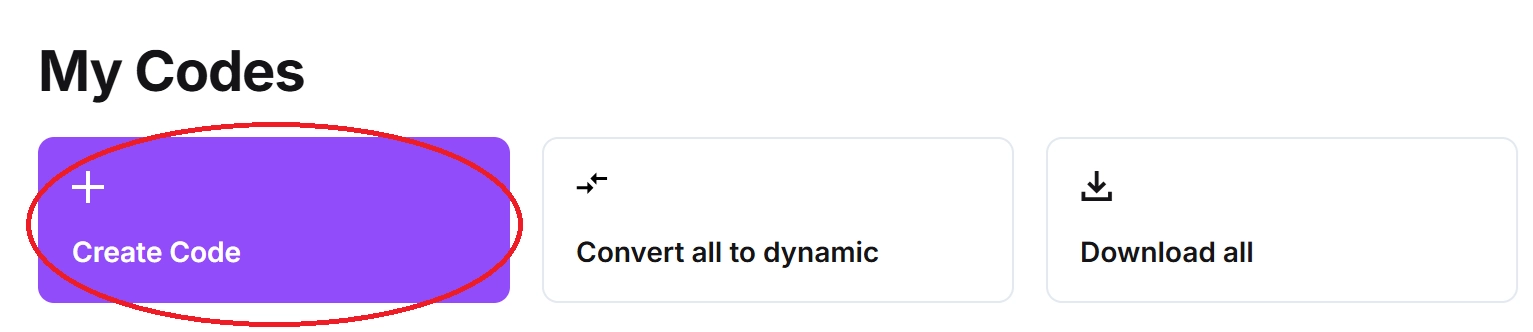
Step 2: In QR Code Developer, select the Create Code option.
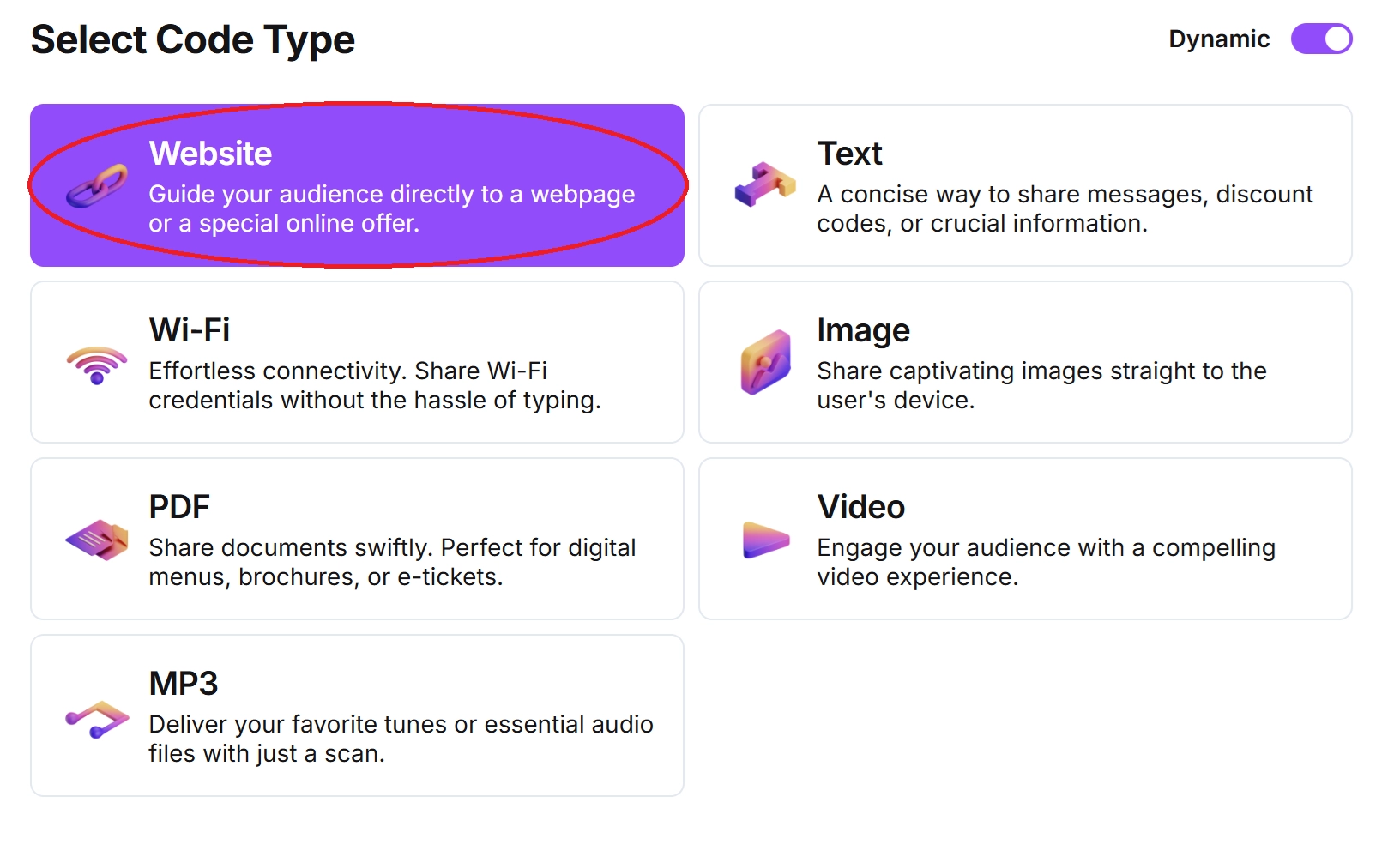
Step 3: Click on Website.
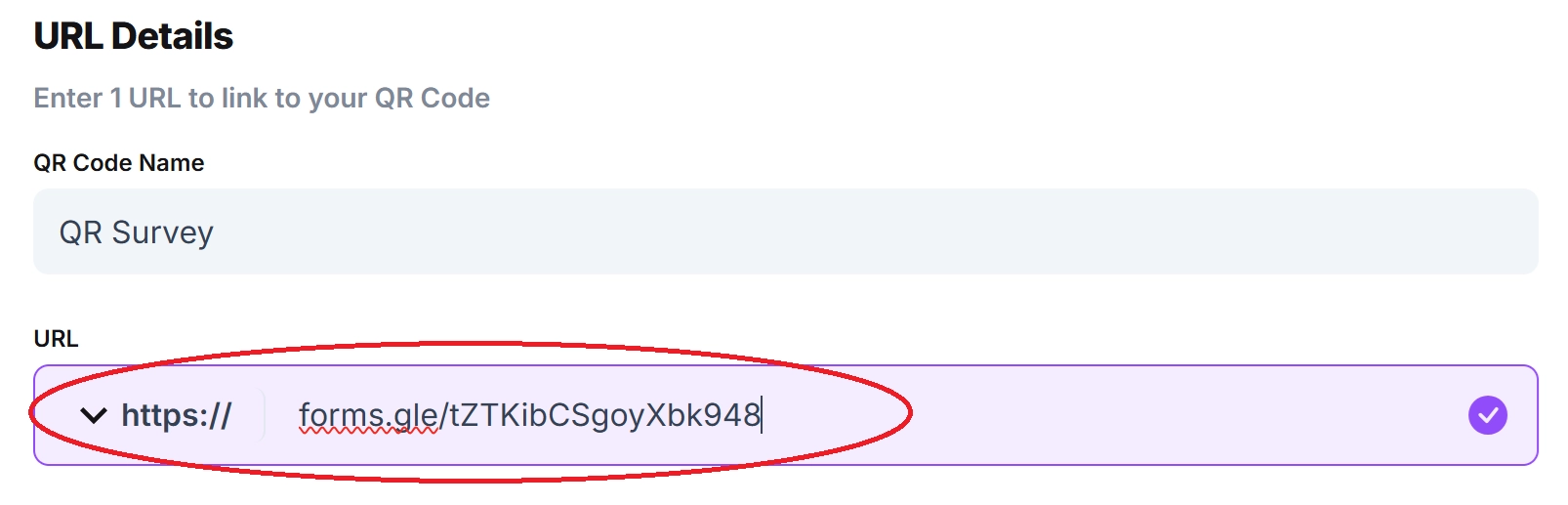
Step 4: Name your code and paste the URL into the bar.
Optional: Click on the pencil icon in the Preview window to further customize the look of your code.

Step 5: Click Generate.

Step 6: Test your code on multiple devices.
FAQ
Q: How can I make my survey accessible via QR code?
A: If you use a service like Google Forms or Survey Monkey, then you can easily make it accessible via a QR code by attaching the URL link to the code.
Q: What services are out there to make an online survey?
A: Google Forms, Survey Monkey, Jotform, and Survey Planet are all free resources you can use to make an online survey.
Q: Where can I put the QR code for my survey?
A: Perhaps the best place would be on the receipt you give your customer, but you can also put a code on a business card, ad, or flier.
Q: Do I need to hire someone to make my QR code?
A: No. You can create QR codes on your own for free through a service like QR Code Developer.
Q: How do I scan a QR code?
A: QR codes can be scanned by opening up the camera app on your device (phone or tablet), pointing it at the code, and then tapping the link when it pops up.
Q: Do I need to download an app to scan QR codes?
A: No. Most modern smart phones and tablets are capable of scanning QR codes right from the built-in camera, though there do exist third party QR code scanners on app stores.
General tips
- Know your audience: If you’re certain that most of your intended audience doesn’t know how to use QR codes or just don’t like them, then don’t use them.
- Keep instructions clear: Provide clear instructions on how to use and scan QR codes as well as where the codes will redirect to.
- Place codes on a flat surface: To make sure that codes are still scannable, only put them on flat surfaces, like walls, tables, posters, or fliers.
- Use high contrast: If using custom colors on a code, make sure that the colors are distinct enough from each other to be read as a QR code.
- Make sure codes are visible: Don’t place codes where patrons are unlikely to see them.
- Only use codes when necessary: If an alternative exists that’s easier for all parties involved, use that
- Test on multiple devices: Make sure your codes work whether scanned on an Android device, iPhone, tablet, or other device.
Monitoring code usage
With the tools available on QR Code Developer, as well as other code generators, you can monitor the usage of any code you create. This can include how many times a code has been scanned, where it has been scanned, on what device, using what browser, and more. With these tools, you can figure out which codes are reaching the most people and where to focus any advertising efforts.
With QRCodeveloper you can monitor:
- Number of scans
- Number of scans by operating system
- Scans by browser
- Scans by country
- Scans by city
- Scans by language
- Unique scans
Conclusion
Online surveys are a great way to source feedback on your product or service, communicate with your audience, and even fix things to make your brand even better! And perhaps the best way to give out a survey is through a QR code, since they are easy to scan and can be done right away or on the customer’s own time.
You can create QR codes for free with extra features like tracking and customization right now with QR Code Developer. Get started today and join the exciting world of QR codes!